AI Recommendations
Let AI suggest improvements for your ads
Learn how AdWhiz's AI suggests improvements for your ads — and how to apply them with one click.
What Are AI Recommendations?#
After AdWhiz audits your ad account, the AI looks at all your data and creates a list of things you can do to save money and get better results. These are called recommendations.
Think of it like going to the doctor for a checkup. The doctor examines you and then gives you a list of things to do to stay healthy. AdWhiz does the same thing — but for your ads.
What Kinds of Suggestions Will I See?#
Here are the most common types of recommendations AdWhiz will give you:
- Pause campaigns that waste money — stop spending on ads that aren't working
- Adjust bids to lower costs — change how much you pay for each click so you spend less
- Add negative keywords to stop irrelevant clicks — prevent your ads from showing to people who aren't interested
- Reallocate budget to winning campaigns — move money from weak campaigns to your best ones
- Fix ad copy for better click rates — improve the words in your ads so more people click on them
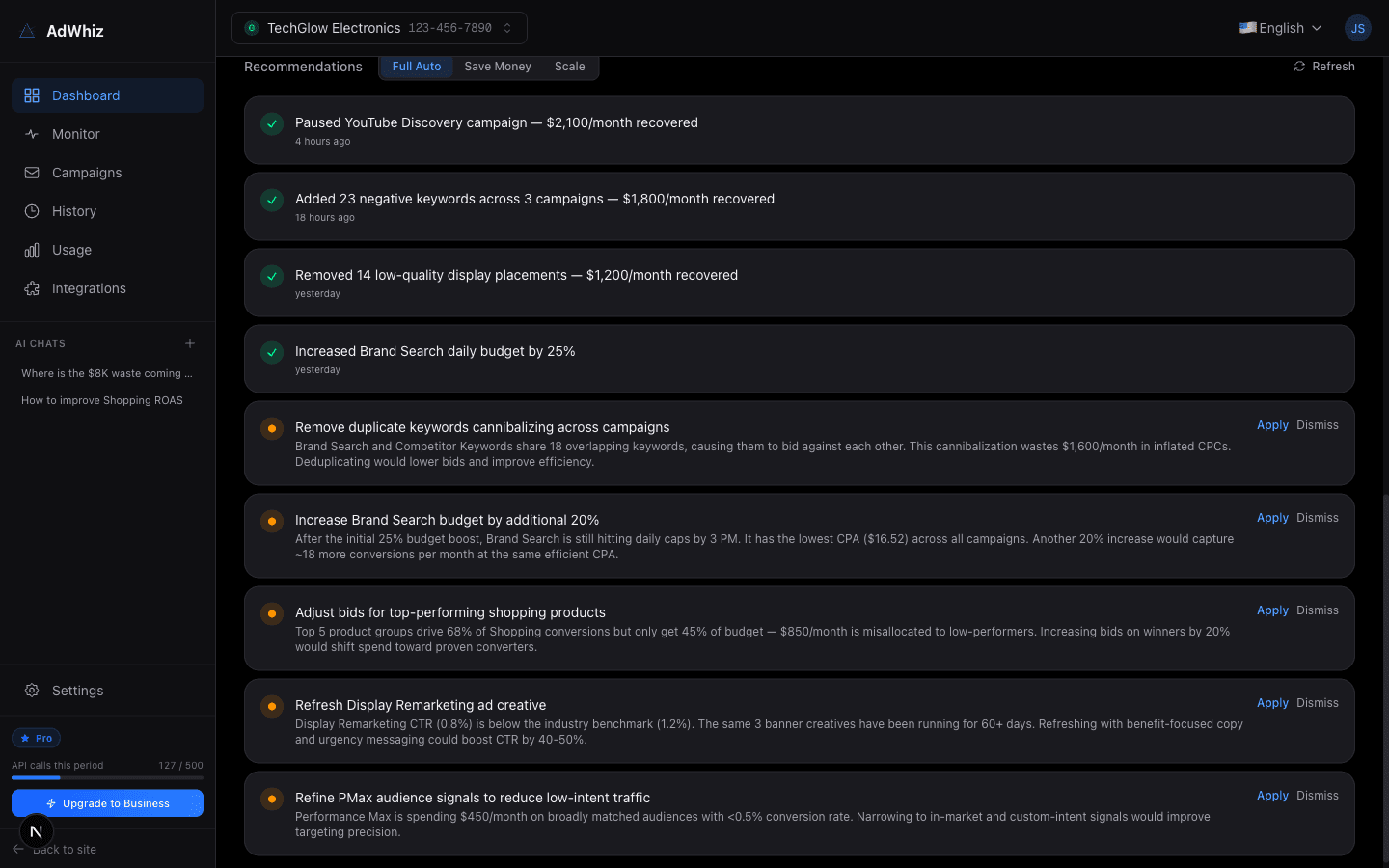
Each recommendation explains exactly what to change and why. You don't need to guess — the AI tells you everything.
How to Use Recommendations#
Using recommendations is simple. Here are the steps:
Read the recommendation
Each card has a title and a short explanation. Read it to understand what the AI wants to change and why. If you see any unfamiliar terms, check our Glossary.
Click "Apply" to make the change
If you agree with the suggestion, click the "Apply" button. AdWhiz will make the change to your ad account for you. You don't need to log in to Google Ads or Meta Ads — it's all done automatically.
Or click "Dismiss" if you prefer not to change it
Not every suggestion will be right for you. If you know something the AI doesn't (for example, a seasonal campaign you want to keep running), just click "Dismiss". The recommendation will be removed from your list.
What You'll See
Each recommendation card shows the issue type, affected campaign or ad group, the estimated impact (High / Medium / Low), and a short explanation of what to do. Click any card to see the full details.
Applying changes is real
When you click "Apply", AdWhiz makes the change to your actual Google Ads or Meta Ads account. This is not a simulation — it's a real change. If you change your mind, you can undo it from your Google Ads or Meta Ads dashboard directly.
Priority Levels#
Each recommendation has a priority level that tells you how urgent it is. Here's what the colors mean:
| Priority | Color | What it means |
|---|---|---|
| High | Red | Fix this right away. This issue is costing you money or seriously hurting your ad performance. |
| Medium | Yellow | Fix this when you can. It's not an emergency, but your ads will do better after you fix it. |
| Low | Blue | Nice to have. This is a small improvement that could make things a bit better over time. |
Start with the red (High priority) items first. These are the changes that will make the biggest difference. Then work your way down to yellow and blue.
Focus on High-Impact Items First
Recommendations marked 'High' at the top of the list usually save you the most money. Work through them from top to bottom for the biggest improvements.
Check recommendations regularly
New recommendations appear after each audit. Make it a habit to check them at least once a week. The more suggestions you apply, the better your ads will perform — and the higher your Health Score will go.
Where to Find Recommendations#
You can see recommendations in two places:
- On the Dashboard — the Optimization Feed at the bottom shows your latest suggestions
- On the Monitor View — the right column shows recommendations you can apply or dismiss
Every recommendation you apply or dismiss is saved in your Optimization History so you can always look back at what was changed.